
Scenario for Unreal Engine: user guide
Every Scenario model inside Unreal: images, video, 3D, materials, audio and skies, priced before you spend and imported as native assets. For people in the editor and for AI agents through the Scenario MCP.
Latest release
Download 0.2.1- Unreal Engine
- 5.6, 5.7 and 5.8, editor plugin in C++
- License
- MIT
- Source
- github.com/scenario-labs/unreal-plugin
Install
- Download the zip for your Unreal version from the GitHub releases and unzip it into your project, so that
Scenario.upluginsits at<Project>/Plugins/Scenario/Scenario.uplugin. Create thePluginsfolder if the project has none. - Open the project. In Edit > Plugins, search for Scenario, check that it is enabled, and restart the editor if Unreal asks.
- Click the Scenario button in the level editor toolbar and sign in.
Release zips from GitHub are not signed yet. If macOS refuses to load the plugin's libraries, run xattr -dr com.apple.quarantine <Project>/Plugins/Scenario and open the project again.
Scenario for Unreal Engine brings every Scenario model into the Unreal Editor: images, video, 3D, materials, audio and skies. Each request is priced before you send it, and each result lands as a native Unreal asset, placed in your level in one undo step. Agents such as Claude Code, Codex or Cursor drive the same features through the plugin's local Scenario MCP server.
New here? The quick start takes two minutes.
1. Sign in
Open the Studio with the Scenario button in the level editor toolbar (Alt+Shift+S), or Window > Scenario Studio.
| Option | When to use it |
|---|---|
| Sign in with Scenario | The usual way. Your browser opens on scenario.com; nothing is typed into Unreal. Copy link helps when your default browser uses another profile. |
| Sign in with a code | When the browser cannot reach this editor (remote desktop, locked-down machines). Enter the code shown in Unreal on the page that opens. |
| Use an API key instead | Build machines and shared accounts. Check and save tests the key with a free call. An API key belongs to one Scenario project. |
Credentials are kept in the macOS Keychain or the Windows Credential Manager. On Linux, version 0.2 keeps them in a file in your user config folder that only you can read. They are never written to project files. Settings shows where they are stored and has Sign out.
On build machines, SCENARIO_API_KEY and SCENARIO_API_SECRET in the editor's environment take precedence over the saved sign-in, and the editor works in the key's project.
After signing in, choose the Team and Project to generate in, then Use this project. Unreal remembers the choice per project. Settings and the footer of Jobs show the Creative Units the project used this month, across all members and tools.
2. The Studio
The pages, in the order of the left rail:
| Page | What it does |
|---|---|
| Create | Pick a lane and a model, fill the form, check the price, generate. The newest results appear below the form. |
| Library | On Scenario: your Scenario project's assets, to import. In this project: the assets this Unreal project imported from Scenario. |
| Jobs | Every request, its state and its cost. Survives restarts. |
| Workflows | Run your team's ready workflows and Scenario's featured ones. |
| Agent | The local Scenario MCP server: setup for each agent, permissions and the activity log. |
| Settings | Account, team and project, usage this month, output, import and spending preferences, diagnostics. |
The header shows the project (click it to switch), a pill such as 12 CU today with the Creative Units spent today from this editor (charged, or quoted until Scenario reports the charge; hidden while nothing was spent), a dot for the agent server that opens Agent, and the account menu.
The toolbar button's arrow menu has your account (it opens Settings), one entry per lane, your recent jobs, and More: Quick Composer, Agent and Settings (Editor Preferences).
Keyboard shortcuts
On macOS, Ctrl is Cmd.
| Shortcut | Action |
|---|---|
| Alt+Shift+S | Open the Studio |
| Alt+Shift+Space | Show or hide the quick composer |
| Ctrl+Enter | Generate (sends the priced request) |
| Ctrl+M | Open the model picker |
| Ctrl+I | Import and place the newest result |
3. Create
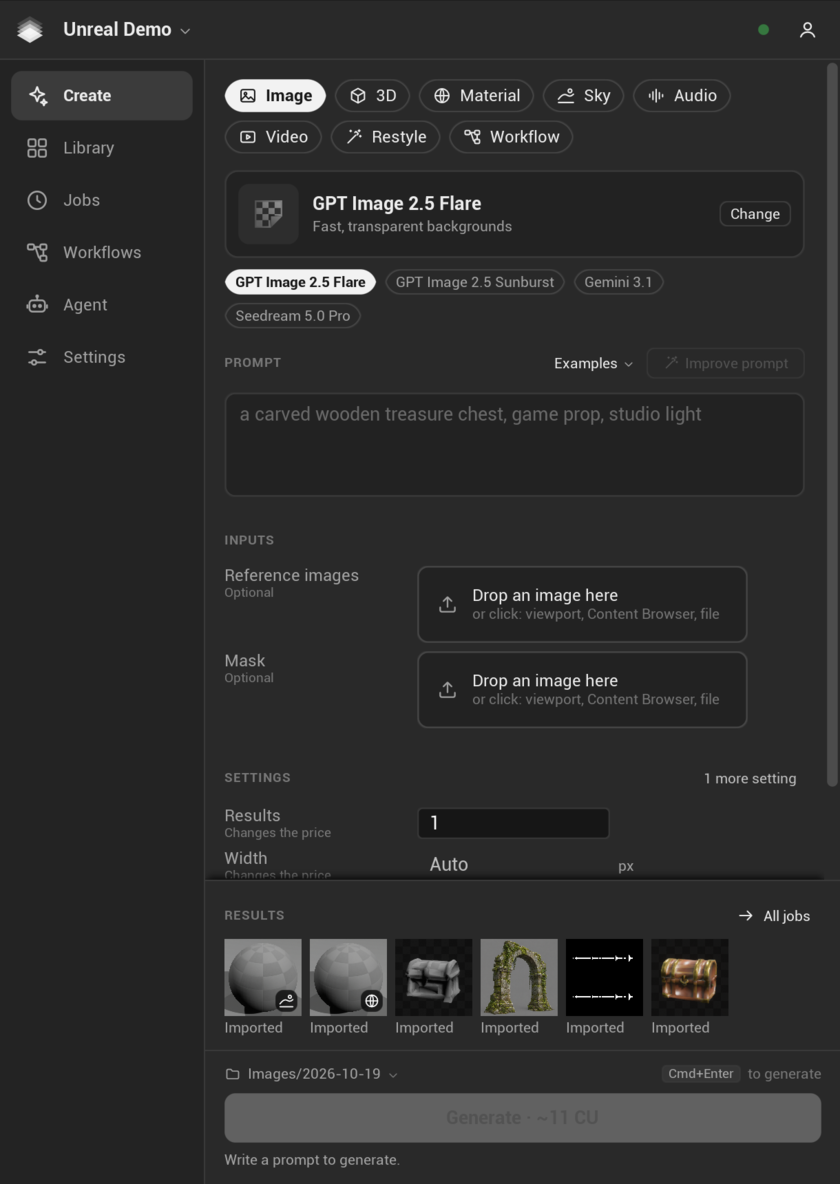
- Lane. Image, 3D, Material, Sky, Audio, Video or Restyle, and Workflow for workflows (see Workflows). Each lane has picks: recommended models that work well in Unreal.
- Model. Change lists the lane's recommended models, Suggest for my prompt and Browse all models..., which opens the model picker (Ctrl+M) with every Scenario model and your team's trained models. In the picker, filter by type and category, search, pin favorites to the top of the list, and turn on Show older models when you need one that Scenario has replaced. Suggest for my prompt asks Scenario which models fit your prompt best; it is free.
- Prompt and settings. The form is built from the model's own settings. Optional inputs are marked Optional. Settings that change the price say Changes the price. N more settings shows the rest. Examples fills the prompt with a starter prompt for the lane.
- References. Models that take images, meshes, audio or video show an Inputs section. Drop assets or files on an input, or click it: - Capture the viewport renders the active level viewport, without gizmos. - Selected actors exports the selected actors to one GLB. - Use the Content Browser selection uses the selected assets. Assets that came from Scenario are reused without an upload. - Choose a file... uploads a file from disk to your Scenario project.
- Price. The Generate button shows the price of the current settings. The plugin checks it for free while you edit. If the price is older than two minutes, the next click checks it again and sends only if it has not changed.
- Generate. The request goes to Scenario once. The job card follows it to the end.
Improve prompt (Prompt Spark, next to the prompt) writes three better prompts for the chosen model. Once the prompt has three words, the plugin checks its price for free and the button shows it; a click runs it. Use on a proposal replaces your prompt.
Unreal-ready (3D lane) adds constraints to the prompt: real-world scale, pivot at the base, clean topology, a single object.
The folder button above Generate shows where results go; click it to choose another Content Browser folder. Use the default folder goes back to the project setting.
4. Lanes
| Lane | Modes | What you get | Where it lands |
|---|---|---|---|
| Image | Texture, plus a material for display | On the selected actor's material, or a plane in front of the camera | |
| Video | MP4 with a File Media Source | A Media Plate in front of the camera (needs the Media Plate plugin) | |
| 3D | Text, Image, Mesh | Static or skeletal mesh with PBR materials, imported through Interchange | At the viewport pivot, or at the original actor's pivot for an edit |
| Material | Tileable PBR maps wired into a material instance | On the selected actor's material slot | |
| Audio | Sound Wave | An Ambient Sound in front of the camera | |
| Sky | 360 sky, HDRI lighting | 360 sky (2:1 panorama) | A sky sphere, or an HDRI Backdrop for .hdr results (needs the HDRI Backdrop plugin) |
| Restyle | Restyled image of the active viewport | Like Image |
Notes:
- Texture roles are set on import: sRGB is off for normal, roughness, metallic and height maps.
- Some material models return a map named smoothness. PATINA's holds roughness values, so the import uses it as roughness. For a model whose map is real smoothness, turn Invert smoothness on in Project Settings: the import then keeps the smoothness texture and adds an inverted copy (roughness = 1 - smoothness, name ending in
_R) that the material instance uses. - The PBR parent material matches the project's renderer:
M_Scenario_PBR(legacy graph) when Substrate is off,M_Scenario_PBR_Substrate(a Substrate slab) when it is on. The import notice and the result's checks name the one used. - Meshes are imported with the plugin's own settings, whatever the last import dialog said: 1 unit = 1 cm, simple collision, Nanite per Project Settings, no generated lightmap UVs (Lumen does not use them), materials and textures imported. A mesh with a translucent material slot is left without Nanite. The result's checks give one line per rule.
- When an optional engine plugin is missing, the asset is still imported but not placed. In version 0.2 the message naming the plugin to enable in Edit > Plugins reaches agents and scripts only, in the result's warnings.
Next steps on a result
Send to, in a finished job's ... menu or in the Library, starts a new request from its result. Nothing is sent until you press Generate.
- Images: Edit the image, Make 3D, Make a material, Animate, Upscale, Remove background.
- 3D: Edit the mesh, Rig, Retexture, Remesh.
- Video: Upscale.
5. Quick composer
A bar at the bottom of the level viewport for fast requests without the Studio: lane (Image, 3D, Material, Sky, Audio, Video, Restyle), model, prompt, and the priced Generate button. Open in Studio opens the full form in the Studio. Show or hide it with Alt+Shift+Space or the toolbar menu.
6. Jobs and recovery
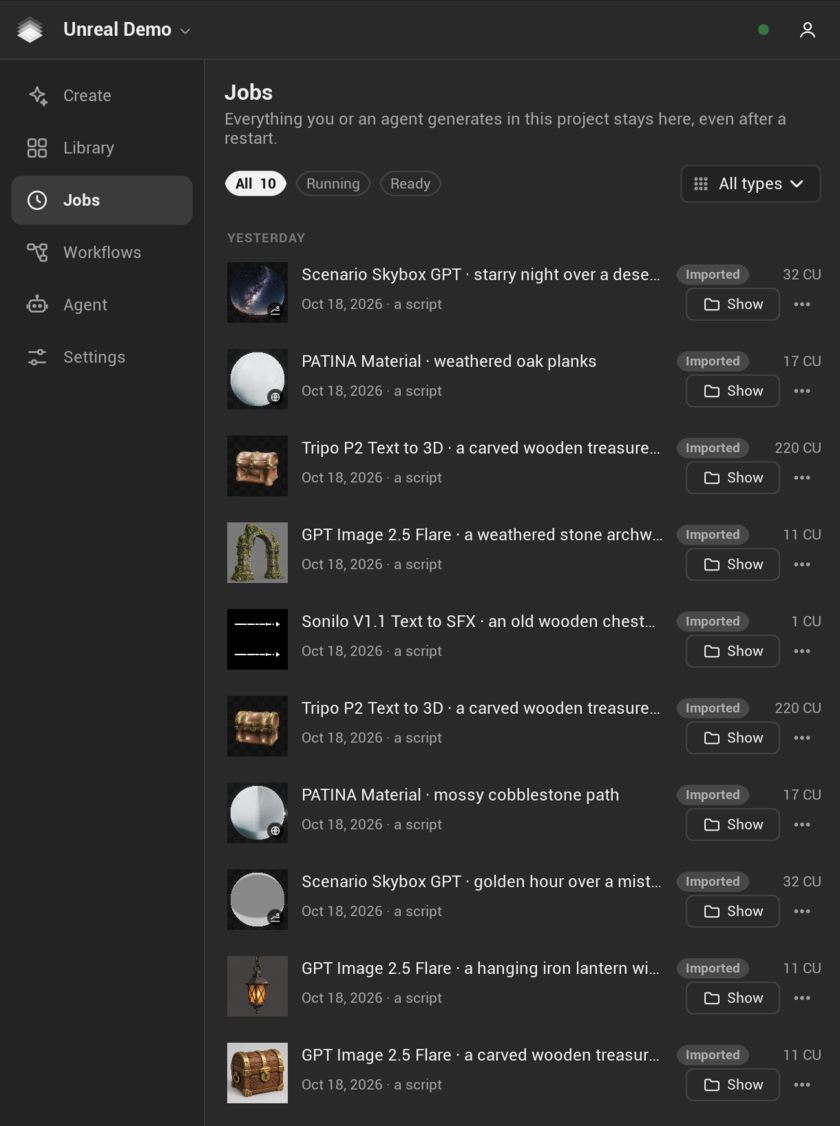
Every request is written to the project's job list (Saved/Scenario/) before it is sent, so nothing is lost when the editor closes. On the next start, running jobs resume and partial downloads continue where they stopped.
Jobs lists every request, newest first under day headers. The chips All, Running, Ready and Needs attention filter the list (Needs attention shows while a job failed, was blocked, is not confirmed or stopped downloading), and the type menu keeps one kind of result. The footer shows the Creative Units the project used this month, across all members and tools. Each job has its main action on the row and the others in its ... menu.
| State | Meaning | What you can do |
|---|---|---|
| Sending, Queued, Generating | On its way or running on Scenario | Cancel (Scenario decides whether Creative Units are refunded) |
| Downloading | Files are being fetched | Wait; a stopped download resumes |
| Download stopped | The download stopped before the end | Resume download |
| Ready | Downloaded, not imported | Import and place, or Import only (Content Browser only) |
| Imported | In the project | Show, Place again, Send to, Delete imported assets |
| Failed | Scenario or the plugin reported an error | Read the message; Details shows ids and errors, Copy copies them for support |
| Blocked | Scenario's moderation refused it | Change the prompt or the reference |
| Not confirmed | The connection dropped while sending: Scenario may or may not have received it | Check, then Mark as not sent only if it is not there |
The plugin never sends a paid request twice by itself. While a request is not confirmed, an identical request is blocked: this prevents paying twice for one result. Check (or Check now at the top of Jobs) looks for it in Scenario's recent jobs and links it when there is exactly one match. Mark as not sent is your call, after you have checked.
Resume download on a stopped download, or Download again in the menu, fetches a fresh link and resumes partial files. Reuse settings fills the Create form with the job's model and settings.
Results made elsewhere, or lost locally, come back through Library > On Scenario: find the asset and click Import. It becomes a recovered job in Jobs, downloads and imports with its provenance, free.
7. Imported assets
- Folders.
/Game/Scenario/<Kind>/<date>/by default: Images, Meshes, Materials, Audio, Video, Environments, Renders. Change the root and the date folders in Project Settings. - Undo. Each placement is one undo step. Imported asset files are new files and stay when you undo a placement.
- Saving. Imported asset packages are saved right after import (a project setting). The level is not saved for you.
- Provenance. Each imported asset keeps its Scenario asset id, job id, model, prompt, settings, price, date and workspace in editor-only metadata. It is committed with the asset and stripped when the game is cooked. Right-click the asset, Scenario > Show generation to read it. A project setting leaves the prompt out.
- Find them. The Content Browser filter Scenario > Generated by Scenario shows every asset the plugin imported. Actors the plugin placed carry the tag
Scenario. - Remove them. Delete imported assets in a job's menu deletes what that job imported, after Unreal checks that nothing references it.
Import checks
After a 3D import, the plugin checks the mesh: size in centimeters, triangle count, bones and morph targets, material slots. In version 0.1 the checks reach agents only: the apply_result_application result carries them, and asset_detail returns them for any mesh. A line starting with Check: needs a look, for example a mesh far larger than expected.
8. Context menus
| Where | Entry | Does |
|---|---|---|
| Content Browser folder | Generate into this folder | Opens Create with the folder as the destination |
| Asset | Scenario > Next | The same next steps as Send to on a job |
| Asset | Scenario > Use as reference | Adds the asset to the current Create form |
| Asset | Scenario > Show generation | Model, prompt, cost and date of an asset made with Scenario |
| Actor | Scenario > Generate material for this | Opens the Material lane; Import and place applies the result to the actor |
| Actor | Scenario > Retexture or edit (3D) | Exports the selection to GLB and opens the 3D lane on Mesh with it |
| Actor | Scenario > Restyle this view | Captures the viewport and opens the Restyle lane with it |
None of them sends anything to Scenario until you press Generate.
9. Workflows
Workflows lists your team's ready workflows (Your team) and Scenario's featured ones (Featured). Pick one to open it in Create, fill its inputs, check the price on the button, run it. Every step runs on Scenario; the outputs appear in Jobs like any generation. Build workflows on scenario.com.
10. Library
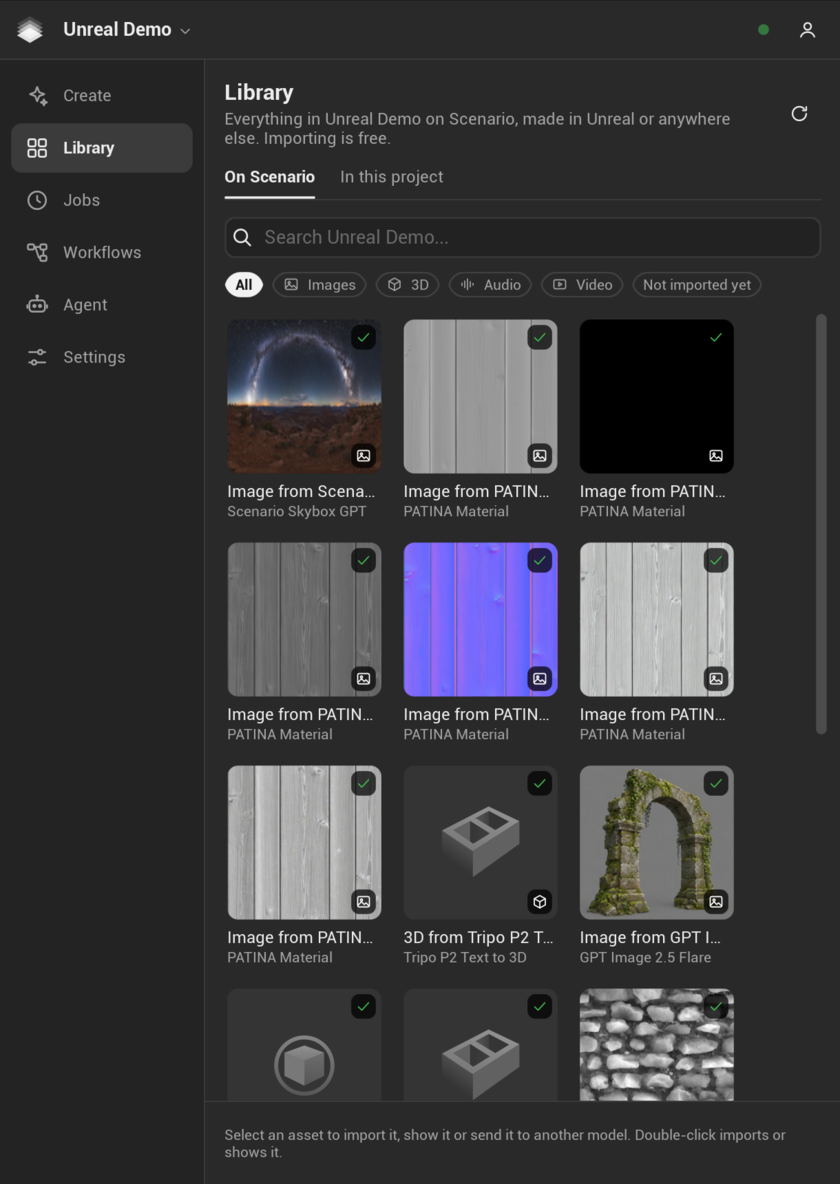
- On Scenario: search your Scenario project's assets, made in Unreal or anywhere else, and filter them by type or Not imported yet. Import downloads an asset into Unreal with its provenance, free; the ... menu also has Import and place and Copy asset id. Send to > Use as reference in Create adds it to the Create form without uploading it again.
- In this project: every asset in this Unreal project that was generated with Scenario, with Show, Reuse settings and Send to.
11. Agents
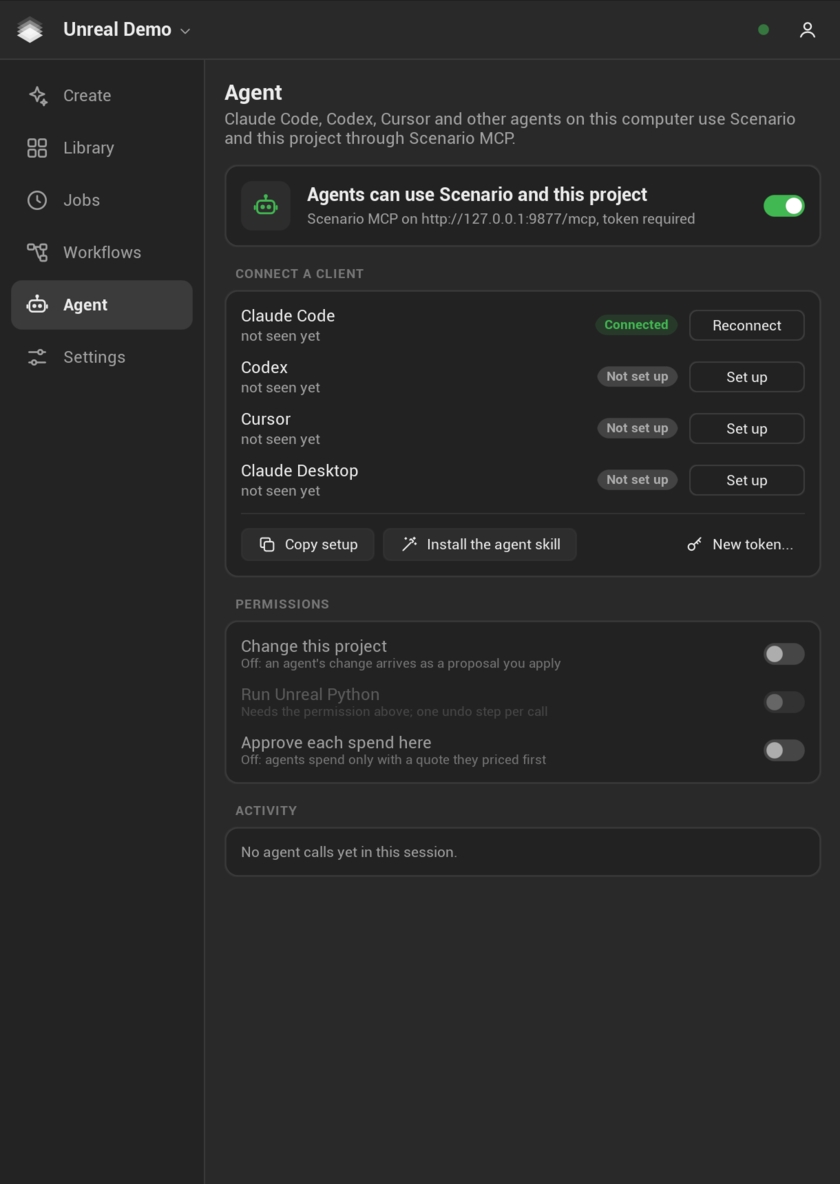
The plugin runs a local Scenario MCP server inside the editor, on http://127.0.0.1:9877/mcp. Agents use it to read the level, price and run Scenario models, and land results. The Agent page has the server's on and off switch, a Set up button for Claude Code, Codex, Cursor and Claude Desktop, the permission switches and an activity log.
By default an agent can read your level and spend Creative Units with a price quote it requested first, and every agent spend shows a notification. It cannot change your project or run Python until you allow it; until then its changes become proposals you approve or decline.
One prompt to a world, a game or a film
With Change this project on (Agent page, Permissions), an agent can lay its Scenario results out for you. Ask it, for example, "make me a walkable misty mountain shrine at golden hour", "turn it into a game where I collect lanterns before sunset", or "make a 20-second film of it with music". The agent generates the assets (you see each price first in its notifications), then uses the kit tools:
- Walkable world: a new level under
/Game/Scenario/Worldswith light for the time of day, the Scenario sky and ground, a landmark, props laid out with a clear path, ambient sound and the project's third-person game mode. Press Play to walk it. - Game: pickups to collect, a goal, a timer, music and a HUD, on a kit world or on a copy of an Epic template level dressed with Scenario materials, meshes, sky and music. The game actors (Scenario Pickup, Goal and Game Rules) also work in a packaged build.
- Film: a Level Sequence with camera moves, cuts, fades and Scenario music, rendered with Movie Render Queue to
Saved/Scenario/Films, and encoded to MP4 when ffmpeg is installed.
The kit saves the levels it creates and never saves your other levels. Films need the Sequencer Scripting and Movie Render Queue plugins.
Setup, tools and examples: Scenario MCP guide.
12. Scripting and automation
The features agents use are also available to Python, Blueprints and the command line. Paid calls follow the same rules: a price quote first, then the call with that exact quote.
Python (needs the Python Editor Script Plugin):
import json, unreal

lib = unreal.ScenarioScriptLibrary
call = lib.start_action("list_models", json.dumps({"lane": "image"}), "my_script")
# Poll from a tick or a later call; actions run on the editor's game thread.
result = lib.get_call(call)
if result.done:
    print(result.ok, result.result_json)
list_actions() lists every action and describe_action(name) returns its input schema. Action names and arguments are the Scenario MCP tools in the Scenario MCP guide. Scripts may import, place and save, but they cannot call execute_python.
Blueprints: the Run Scenario Action async node takes an action name and its arguments as JSON, and fires when the action finishes.
Command line (build machines, batch jobs):
UnrealEditor-Cmd MyProject.uproject -run=ScenarioEditor.Scenario -Generate \
  -Model=<model id> -Params='{"prompt":"mossy stone well"}' -MaxCU=20 \
  -Destination=/Game/Scenario/Batch -Import -Save
-MaxCU is required: the run stops before sending if the quoted price is higher. -Params=@file.json reads the settings from a file. -run=ScenarioEditor.Scenario -Action=<name> -Args=<json> runs any single action. Each step prints one JSON line. Sign in once in the editor (or with an API key) before using it. On macOS, the first run asks once to let UnrealEditor-Cmd read that sign-in from the keychain. Build machines pass -unattended, which never shows that dialog, and set SCENARIO_API_KEY and SCENARIO_API_SECRET.
13. Settings
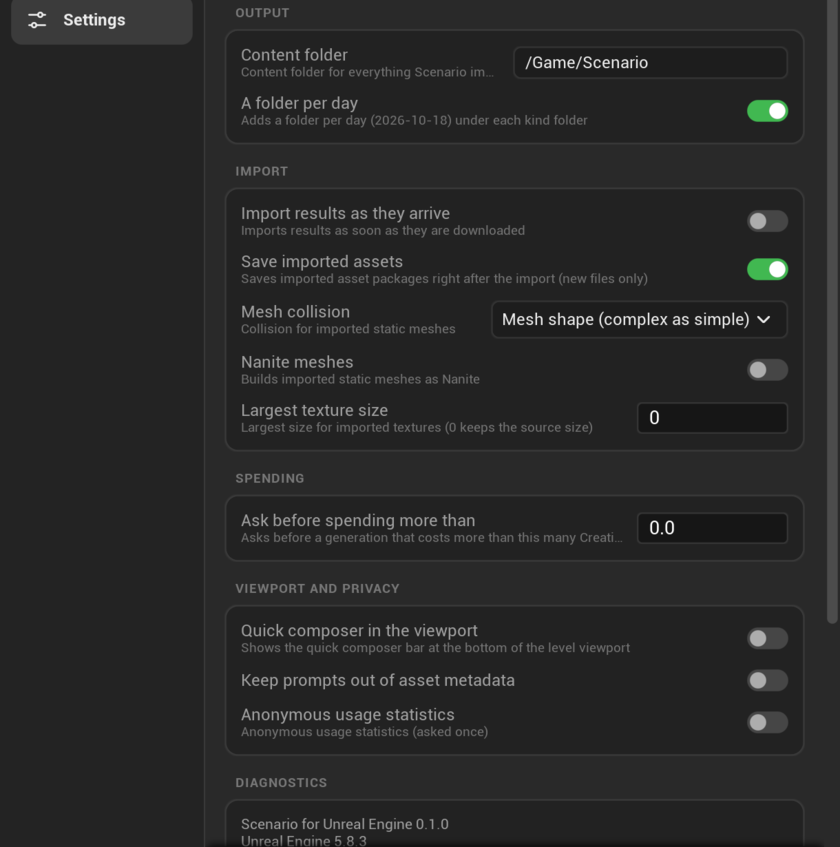
The Studio's Settings page edits the most used ones under Output, Import, Spending and Viewport and privacy; All settings there opens Project Settings.
Project Settings > Plugins > Scenario (shared with the team, saved in Config/DefaultEditor.ini):
| Setting | Default | Effect |
|---|---|---|
| Output root | /Game/Scenario |
Content folder for everything Scenario imports. Shared parent materials go in its _Shared folder |
| Date folders | On | A folder per day under each kind folder |
| Omit prompt from assets | Off | Keeps the prompt out of the provenance stored in imported assets |
| Mesh collision | Mesh shape | Collision for imported static meshes. Mesh shape lets the player walk through gates, arches and doors; Simple box is cheaper but closes them |
| Nanite | On | Builds imported static meshes as Nanite when every material slot is opaque or masked |
| Invert smoothness | Off | When on, material results with a smoothness map get an inverted roughness copy; off uses the map as roughness (PATINA labels roughness maps as smoothness) |
| Max texture size | 0 (source size) | Largest size for imported textures; panoramas keep their size |
| Save imported assets | On | Saves new asset packages right after import |
| Allowed models, Blocked models | Empty | Limit the models this project can use |
Editor Preferences > Plugins > Scenario (yours only):
| Setting | Default | Effect |
|---|---|---|
| Confirm above CU | 0 (never asks) | Asks before a generation that costs more than this |
| Auto import | Off | Imports results as soon as they are downloaded |
| Show composer | Off | Shows the quick composer in the level viewport |
| Agent server | On | Starts the local Scenario MCP server with the editor |
| Agent port | 9877 | First port tried; the next nine are tried when it is taken |
| Agent token | On | Agents must send the bearer token |
| Allow agent changes | Off | Agents may import, place and save; off, their changes become proposals |
| Allow agent Python | Off | Agents may run Unreal Python (needs the setting above) |
| Approve agent spend | Off | Each paid agent call waits for your approval in the editor |
| Telemetry | Off | Anonymous usage statistics; version 0.1 sends nothing |
Set SCENARIO_NO_SPEND=1 in the editor's environment to check prices without ever sending a paid request: the line under Generate reads "SCENARIO_NO_SPEND is set: prices only, nothing is sent."
14. Privacy
Prompts and the files you choose as inputs go to Scenario. Only the three gameplay actors ship in a packaged game, and they send nothing. Details: Privacy.
15. Limits in version 0.1
- macOS is the only tested platform. Windows and Linux builds are compiled but not tested yet.
- The Restyle lane captures the active level viewport only. Films made by the kit use cameras and Movie Render Queue.
- Audio from the Studio is placed as an Ambient Sound; the kit's films put it in a Level Sequence.
- Kit worlds are flat ground with props; there is no landscape sculpting.
- Prompt Spark proposals and uploaded references are kept for the editor session only.
Problems: Troubleshooting.