
Quick start
From install to a first generated asset in your level in about two minutes. You need a Scenario account (create one free) and Unreal Engine 5.6, 5.7 or 5.8.
1. Install
- Close the editor.
- Unzip the plugin into your project so the folder reads
<Project>/Plugins/Scenario/Scenario.uplugin. - Open the project. If Unreal asks to rebuild the Scenario modules, answer Yes (source copies only; release zips are prebuilt).
- On macOS, if the editor reports that the plugin's libraries cannot be opened, the zip was quarantined by Gatekeeper. Release zips are not signed yet in version 0.2. Run this once, then reopen the project:
sh
   xattr -dr com.apple.quarantine "<Project>/Plugins/Scenario"
A notification says Scenario is installed. Click Open Scenario, or the Scenario button in the level editor toolbar (Alt+Shift+S).
2. Sign in
- Click Sign in with Scenario. Your browser opens on scenario.com; approve the request there, then come back to Unreal.
- If your account has several projects, pick the Team and Project to generate in, then Use this project. Unreal remembers it for this project.
Build machines and shared accounts can use Use an API key instead. The key is checked with a free call and stored in the system keychain, never in project files.
3. Generate
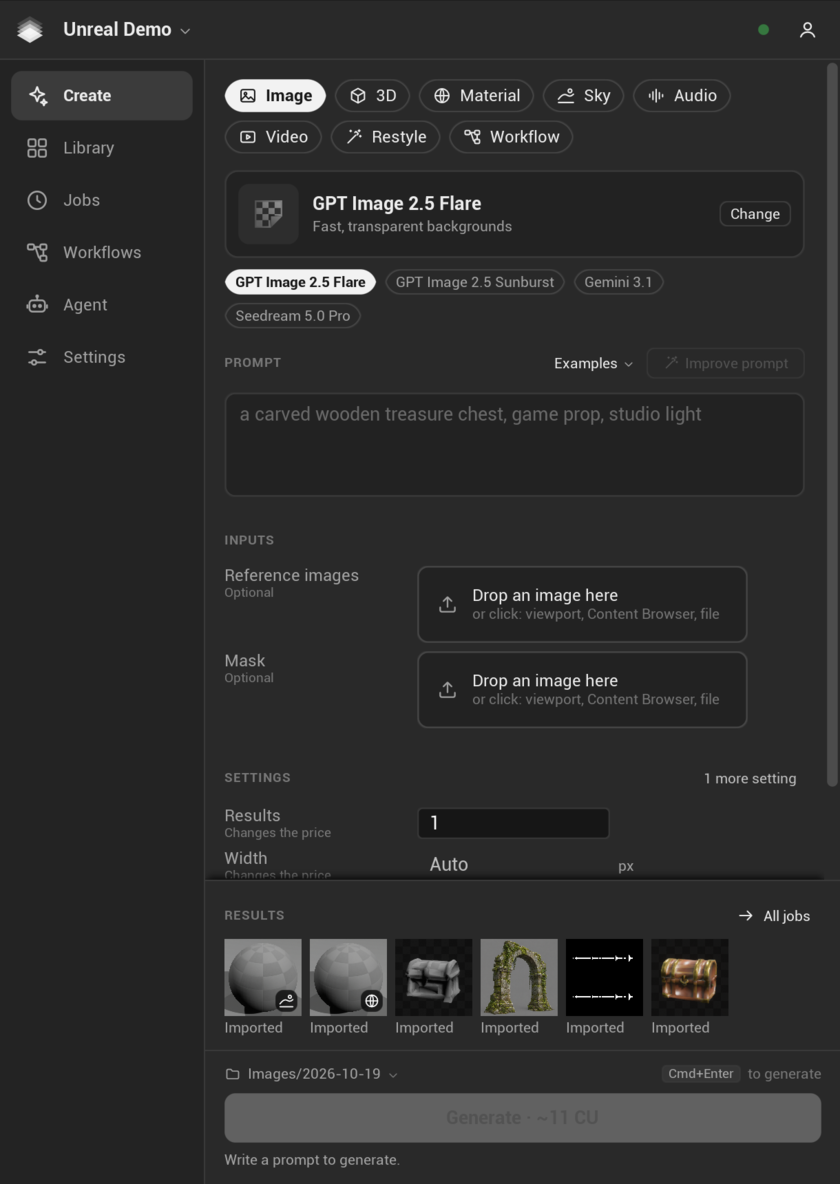
- In Create, keep the Image lane and its first recommended model.
- Type a prompt, for example
weathered bronze shield, front view, plain background. - Wait a second: the Generate button shows the price of these exact settings in Creative Units (CU). Checking the price is free.
- Click Generate (Ctrl+Enter, Cmd+Enter on macOS). The job card shows its progress.
- When the card says Ready, click Import and place. The image is imported as a texture with a material and placed in front of the camera, or applied to the selected actor. Ctrl+Z undoes the placement in one step.
The asset sits in /Game/Scenario/Images/<date>/ and remembers its model, prompt, price and job id: right-click it, Scenario > Show generation.
Next
- Try the 3D lane with Unreal-ready on for a mesh at real-world scale with its pivot at the base.
- Right-click an actor, Scenario > Generate material for this.
- Connect an agent on the Agent page: see the Scenario MCP guide.
- Everything else is in the user guide. If something goes wrong, see Troubleshooting.